HubSpot Setup Guide
Everything you need to install, connect, and start using Emergency Unmerge | Takes about 2 minutes
Install & First Scan Walkthrough
Watch the full install flow - from marketplace to your first free scan in under 2 minutes
On This Page
Install from the HubSpot Marketplace
Click the button below to open the Emergency Unmerge listing in the HubSpot App Marketplace. Then click "Install app" on the listing page.
Install from HubSpot Marketplace →No subscription required. Credits are $0.05 each. Buy exactly how many you need, or save 20% with the 500-credit bundle.
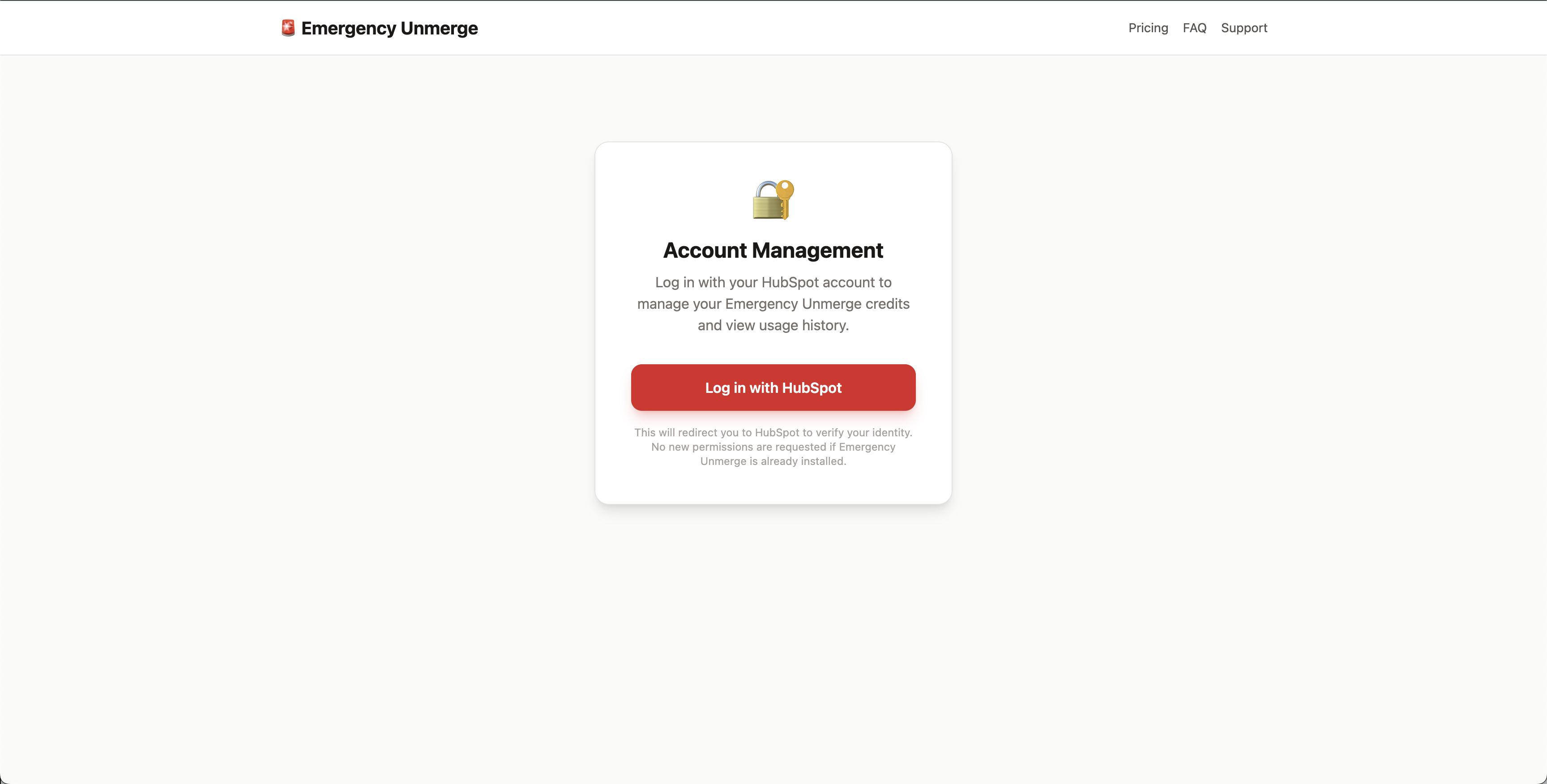
Log in to your HubSpot account
You'll be redirected to HubSpot's login page. Use your normal HubSpot credentials - there are no extra logins to create or manage.
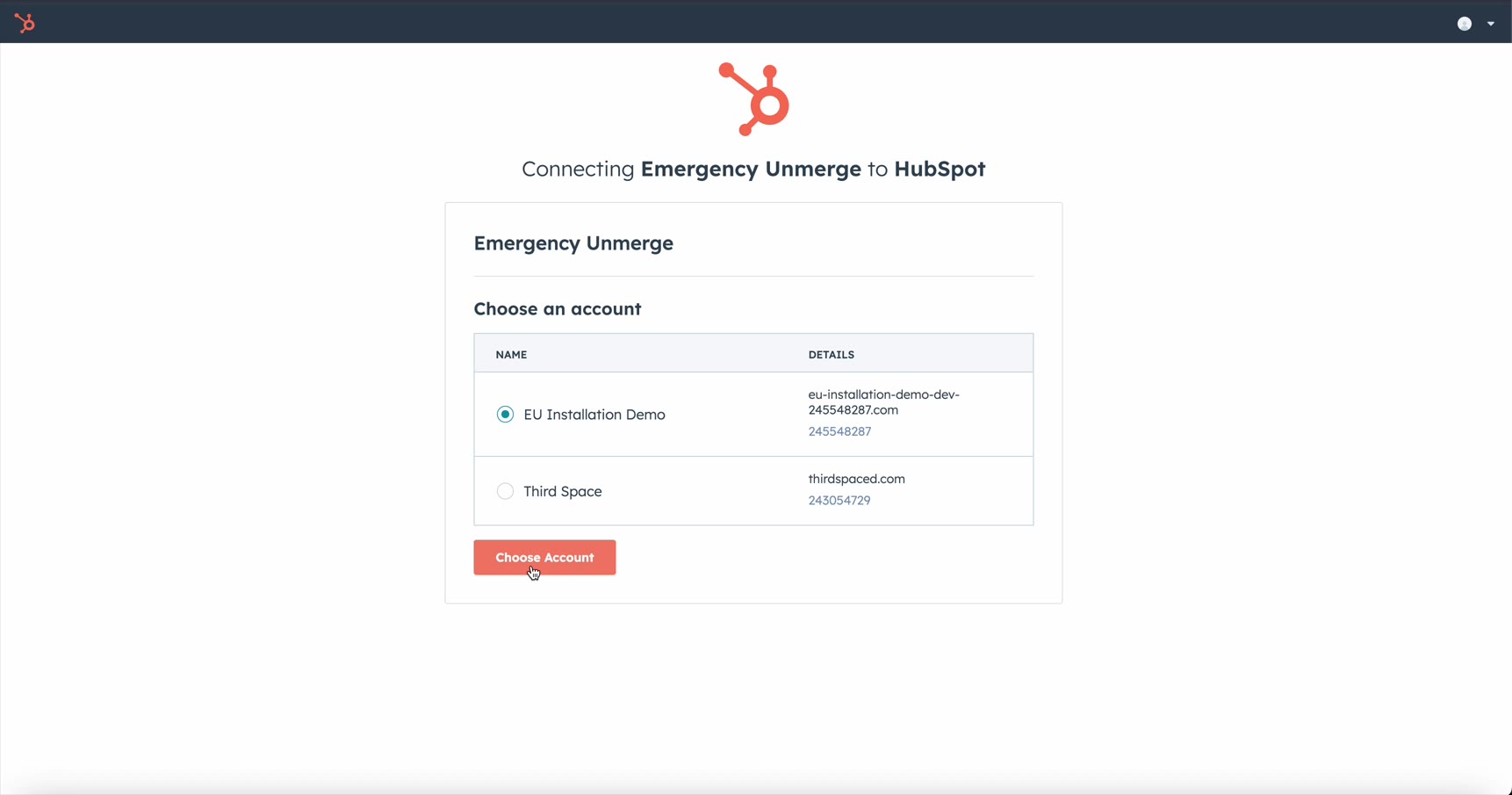
Select your HubSpot account
If you have access to multiple HubSpot portals, you'll be asked to choose which one to connect. If you only have one account, this step is skipped automatically.
Approve permissions
HubSpot will show a permissions screen listing the scopes Emergency Unmerge needs. Check the acknowledgment checkbox, then click "Connect app" to approve.
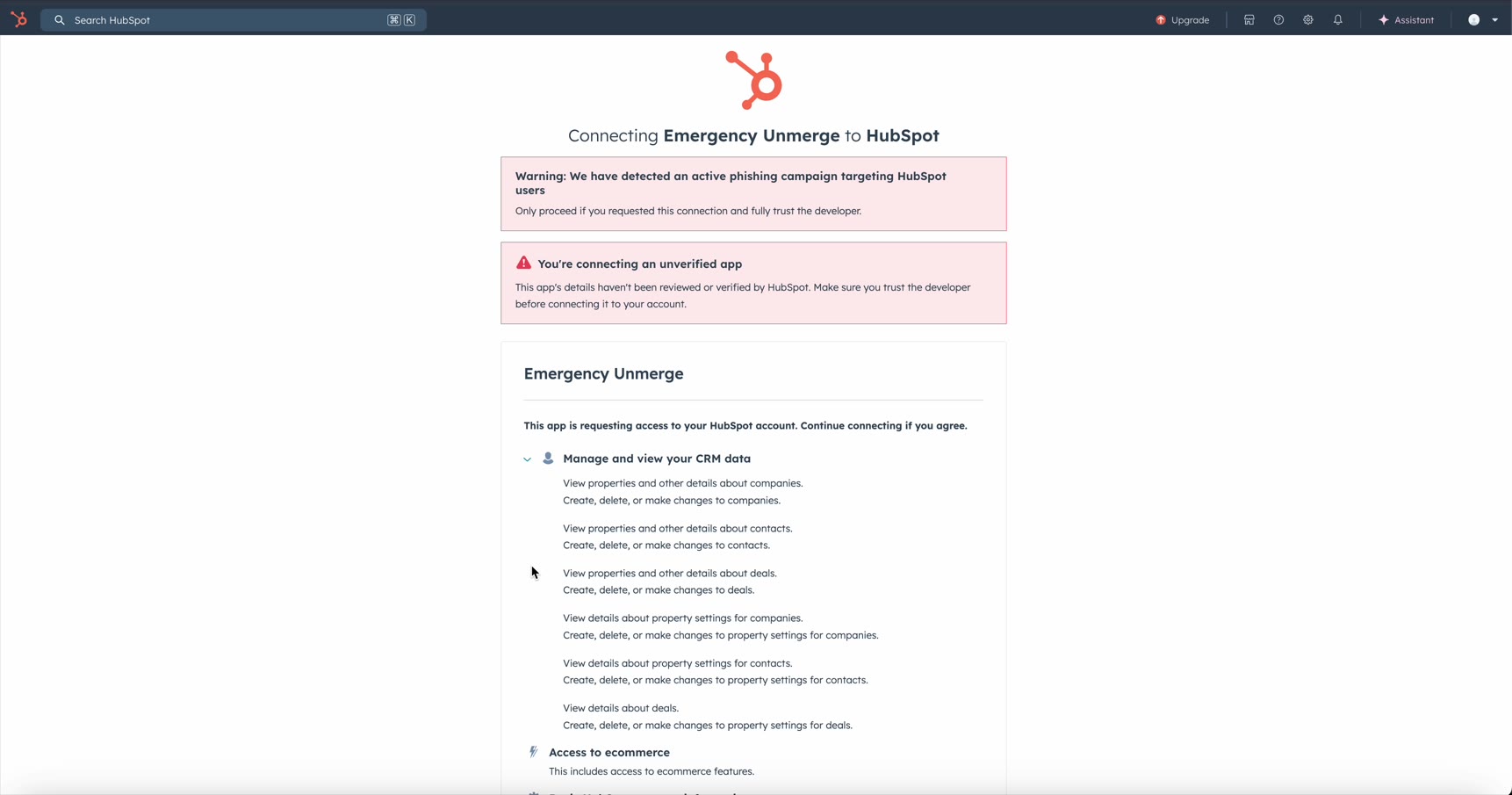
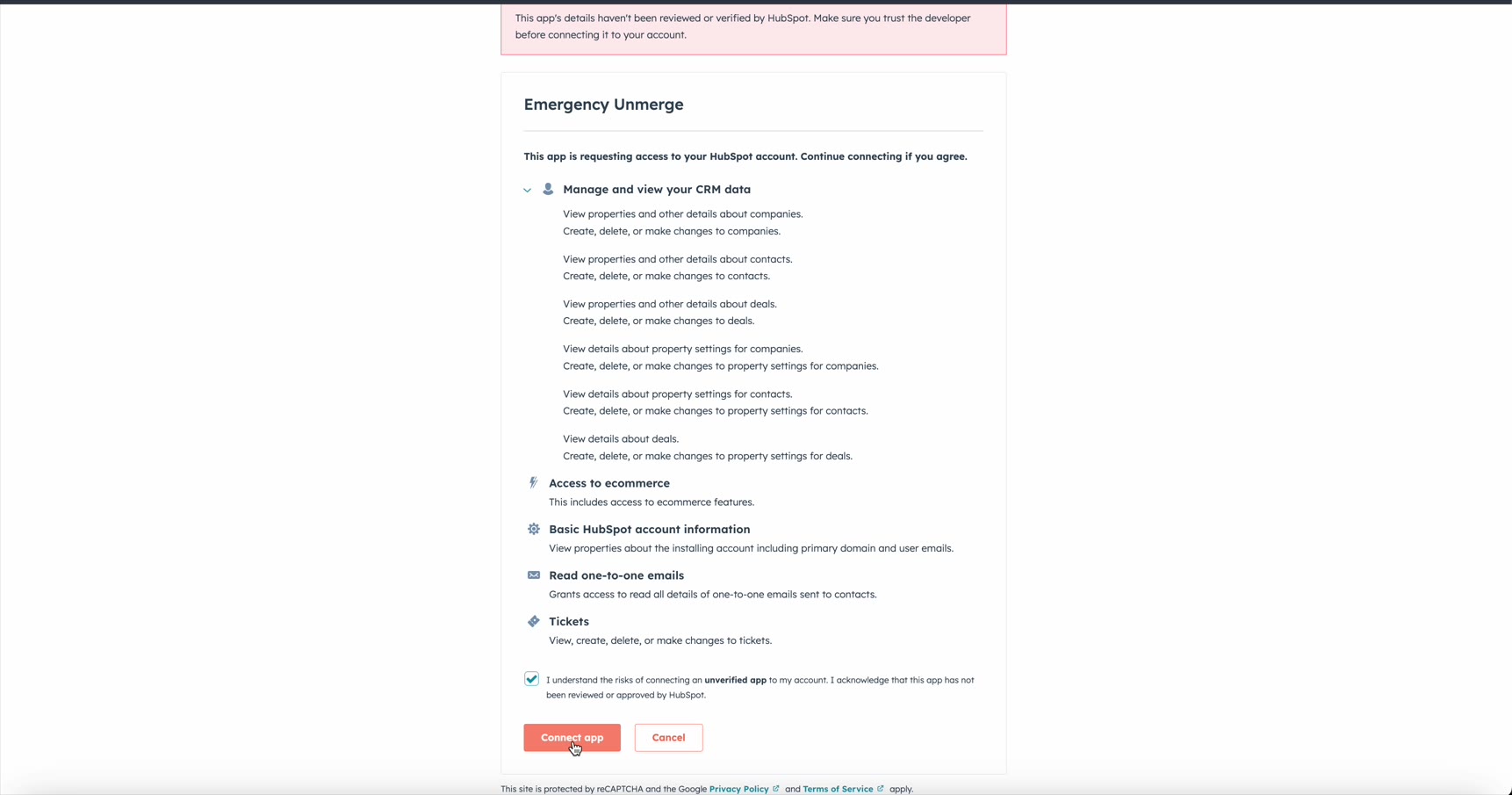
Why these permissions? Emergency Unmerge needs read/write access to contacts, companies, and deals so it can analyze property history, scan associations, and recreate the separated records after reconstruction. Optional scopes (tickets, e-commerce, sales emails) let us attribute related records more accurately - you can decline these if your portal doesn't use them.
Required scopes:
- Contacts: read & write (properties, schemas)
- Companies: read & write (properties, schemas)
- Deals: read & write (properties, schemas)
Optional scopes (can be declined):
- Tickets: for ticket association recovery
- E-commerce: for line item association recovery on deals
- Sales email read: for email forensic analysis during reconstruction
Open a merged record in HubSpot
Navigate to any contact, company, or deal in your HubSpot CRM. Emergency Unmerge appears in two places:
- Sidebar card: Quick scan access on the right-hand panel of any record page
- Tab card: Full workflow (scan → reconstruct → review → execute → property editor) under the "Emergency Unmerge" tab
If the record was created from a merge, the card will automatically detect it and show a "Scan Record" button. If no merge is detected, it will display "No merge detected."
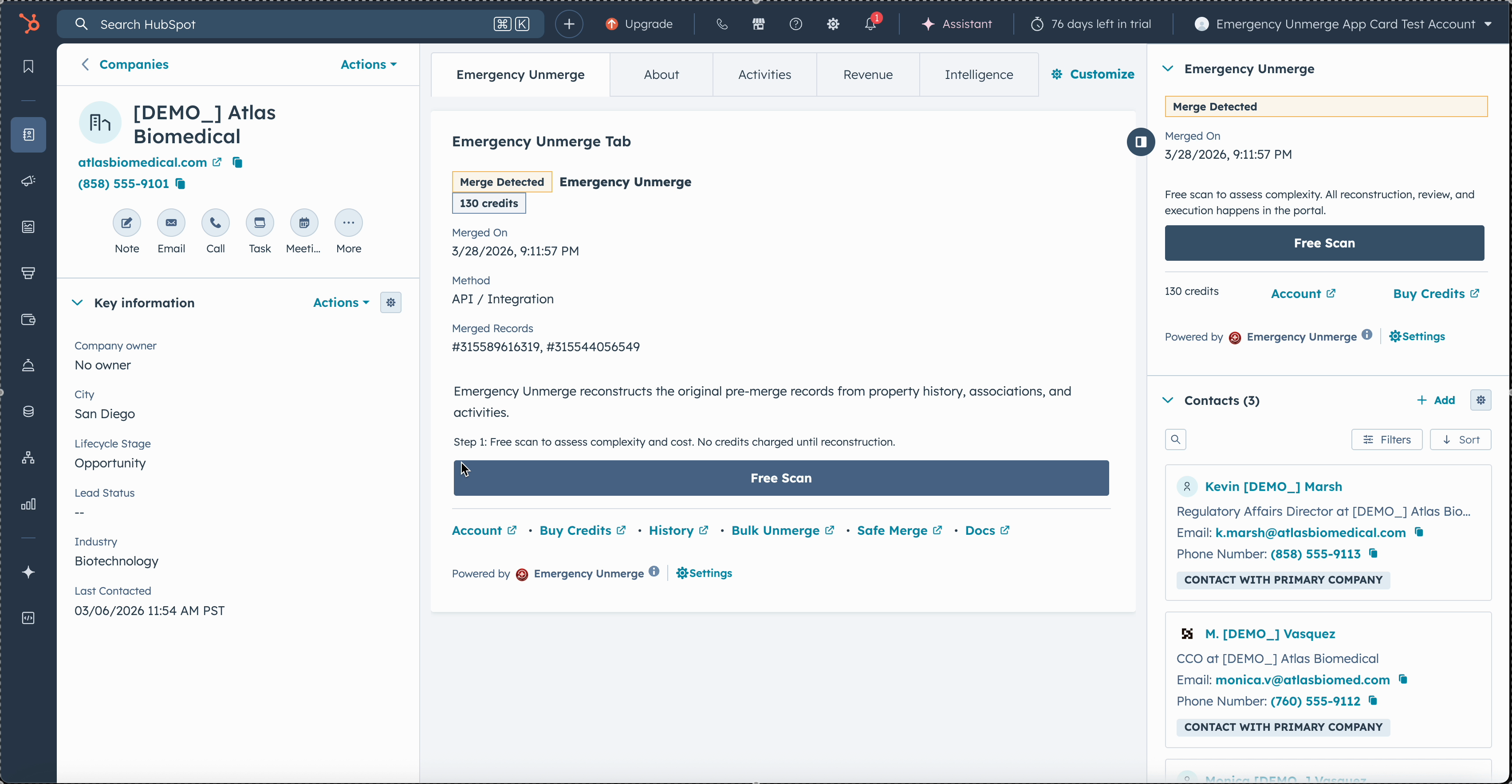
Both the Emergency Unmerge tab (left) and sidebar card (right) are visible on a merged record. Click "Scan Record" for a free complexity assessment.
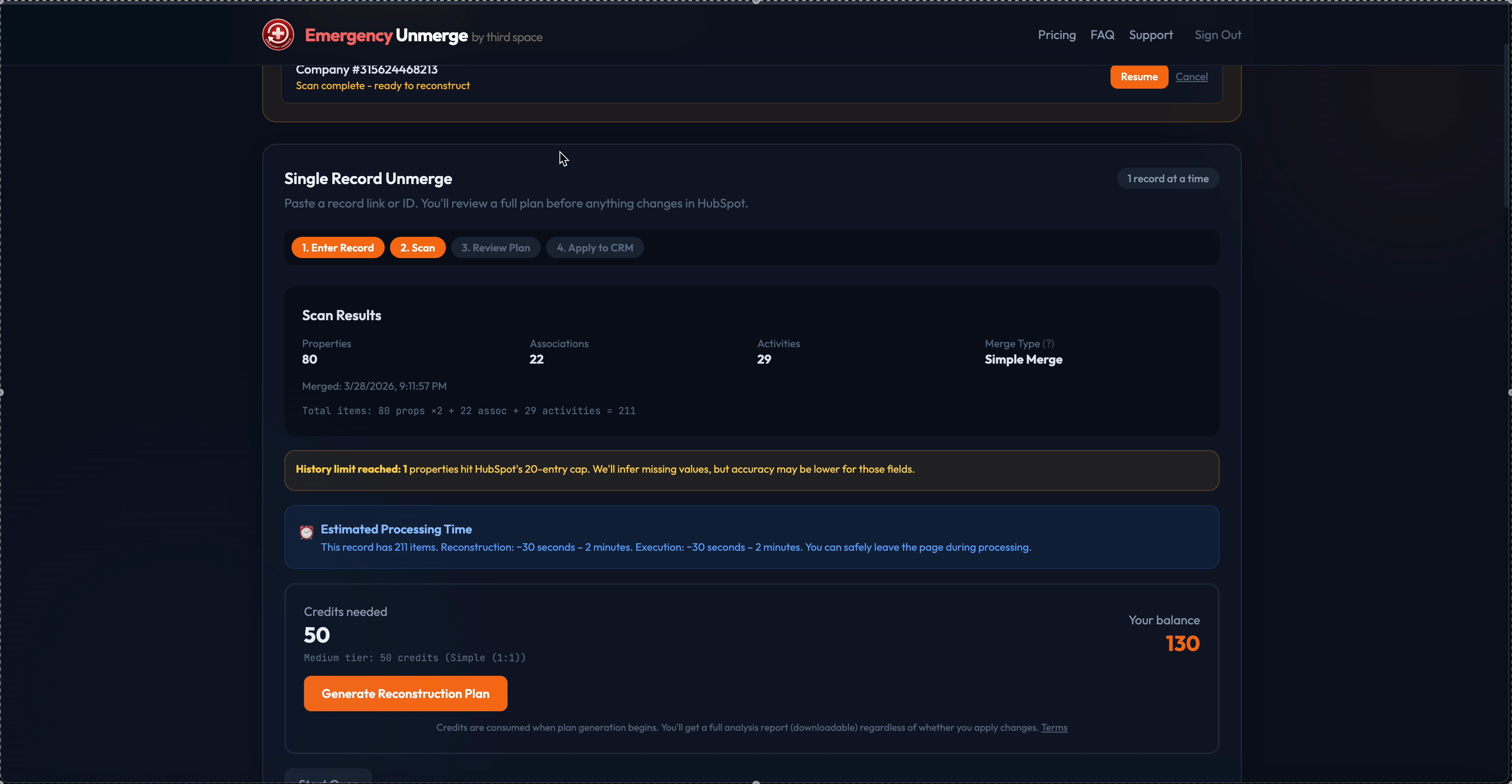
The free scan shows the number of items detected, associations found, complexity assessment, and exact credit cost before you commit.
Scan, reconstruct, and execute
The full unmerge workflow has four stages:
- Scan (free): Click "Scan Record" for a free complexity assessment. You'll see how many credits the unmerge will cost before committing.
- Reconstruct: Purchase credits if needed. Buy exactly how many you need at $0.05 each, or save with bundles (100 for $4.99, 500 for $19.99, save 20%). Then click "Generate Reconstruction Plan." The system analyzes property history, timestamps, email forensics, and association patterns to rebuild both original records.
- Review: Review both reconstructed records side-by-side. Every field shows a confidence score. Use "Swap All" if the primary/secondary are reversed. Copy the full JSON analysis for manual verification.
- Execute: Click "Execute Unmerge" to recreate the separated records in HubSpot. This creates a new record with the secondary record's properties and reassigns associations.
Important: Credits are consumed when reconstruction begins and are non-refundable after that point. The scan step is always free. See our Terms of Service for details.
Reconstruction & Confidence Scores:
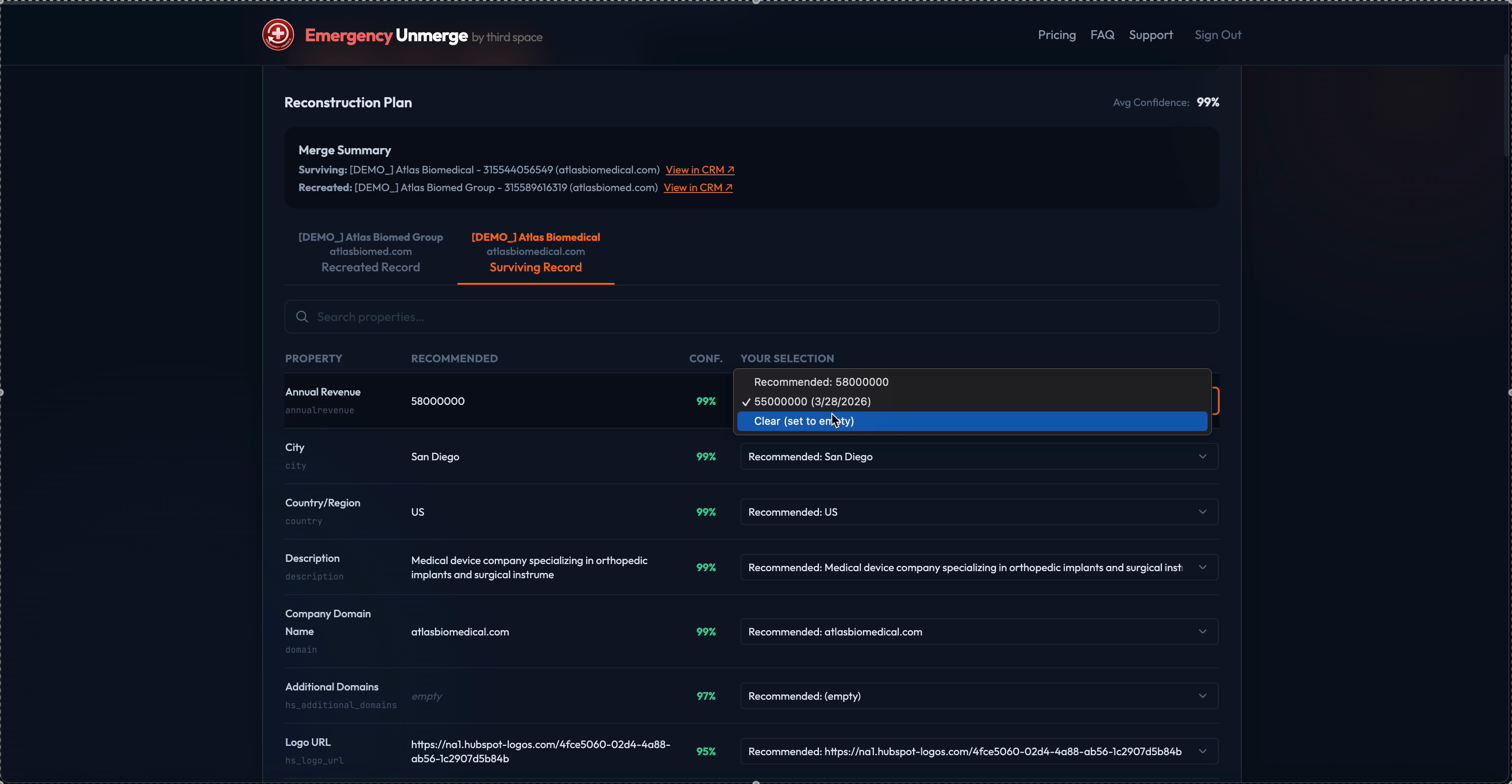
After reconstruction, review every property assignment with confidence scores. Use the dropdown Property Editor to pick an alternative historical value for any field.
Chain Merge Timeline:
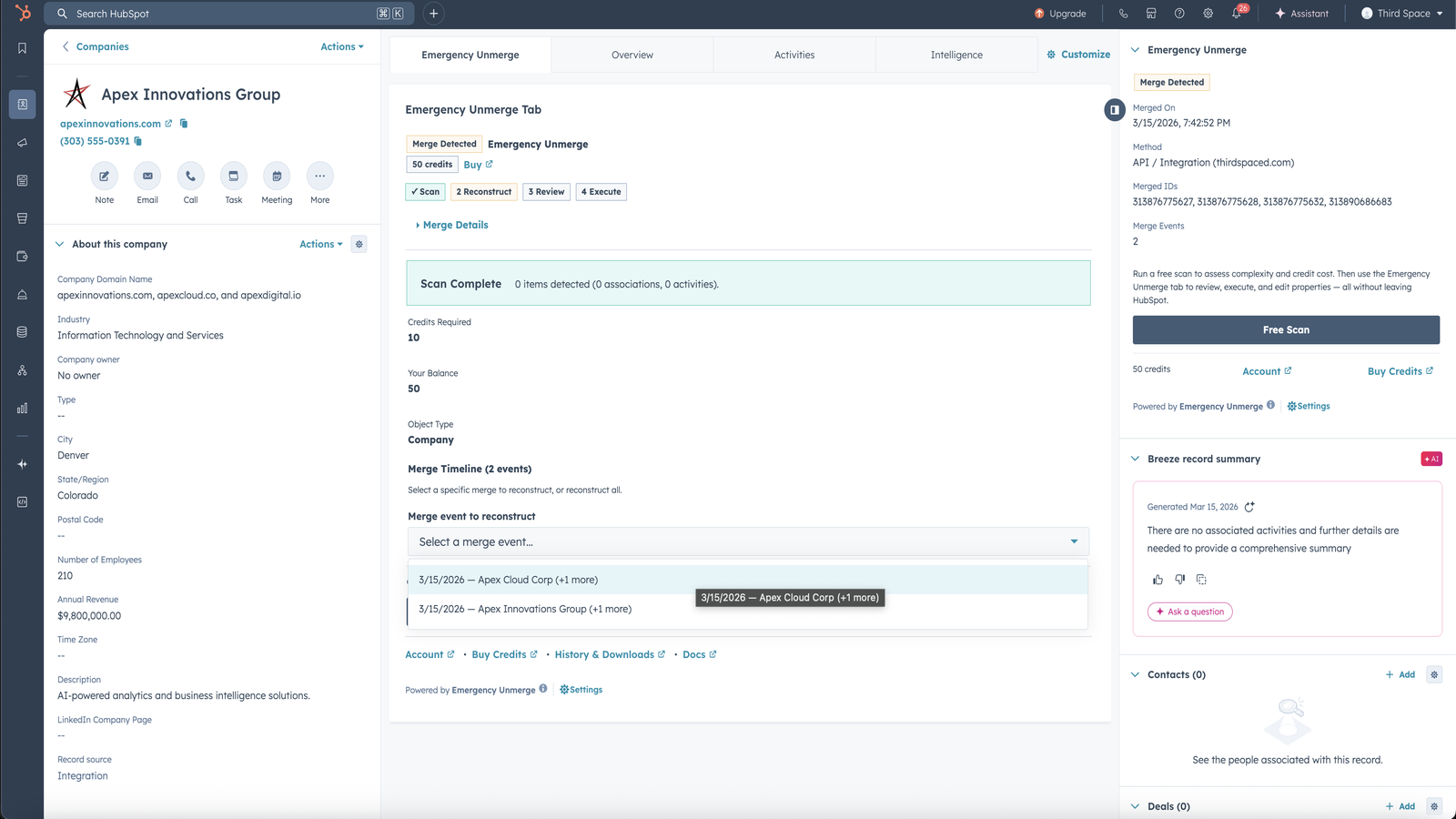
For chain merges (multiple successive merges), the Merge Timeline lets you select which merge event to reconstruct. Each event shows the date and the records involved.
That's it. Your records are separated!
Important - New Record IDs: Recreated records receive new HubSpot Record IDs. The original Record IDs from the abolished (merged-away) records are permanently lost after a HubSpot merge and cannot be recovered by any method: not by API, not by HubSpot support, and not by any third-party tool. If you have external systems, reports, or integrations that reference the old Record IDs, you will need to update them to use the new IDs. The new Record ID is shown in the execution results and recorded in your operation history.
After execution:
- Property Editor: If the reconstruction got a field wrong, click "Load Property Editor" at the bottom of the tab card. Dropdowns show every historical value so you can pick the right one and save it directly to HubSpot.
- Association Editor: Move associations between the separated records, or manually add/remove associations. Access from the completed operation in your account history.
- Recovery Snapshots: Pre and post-execution JSON snapshots are automatically saved. Download them anytime from your account history.
- Analysis Export: Download the full AI analysis as JSON for compliance or manual verification - includes per-property confidence scores, merge forensics, and reasoning.
- Operation History: Your account dashboard tracks every operation - credits spent, processing model, token usage, duration, and confidence scores.
- Free Bulk Scan: Need to find every bad merge across hundreds or thousands of records? Upload a CSV or select a HubSpot List from your account page to scan up to 10,000 records for free. The scan classifies each merge, estimates scope, and exports a full CSV report. No CRM changes are made. Learn more →
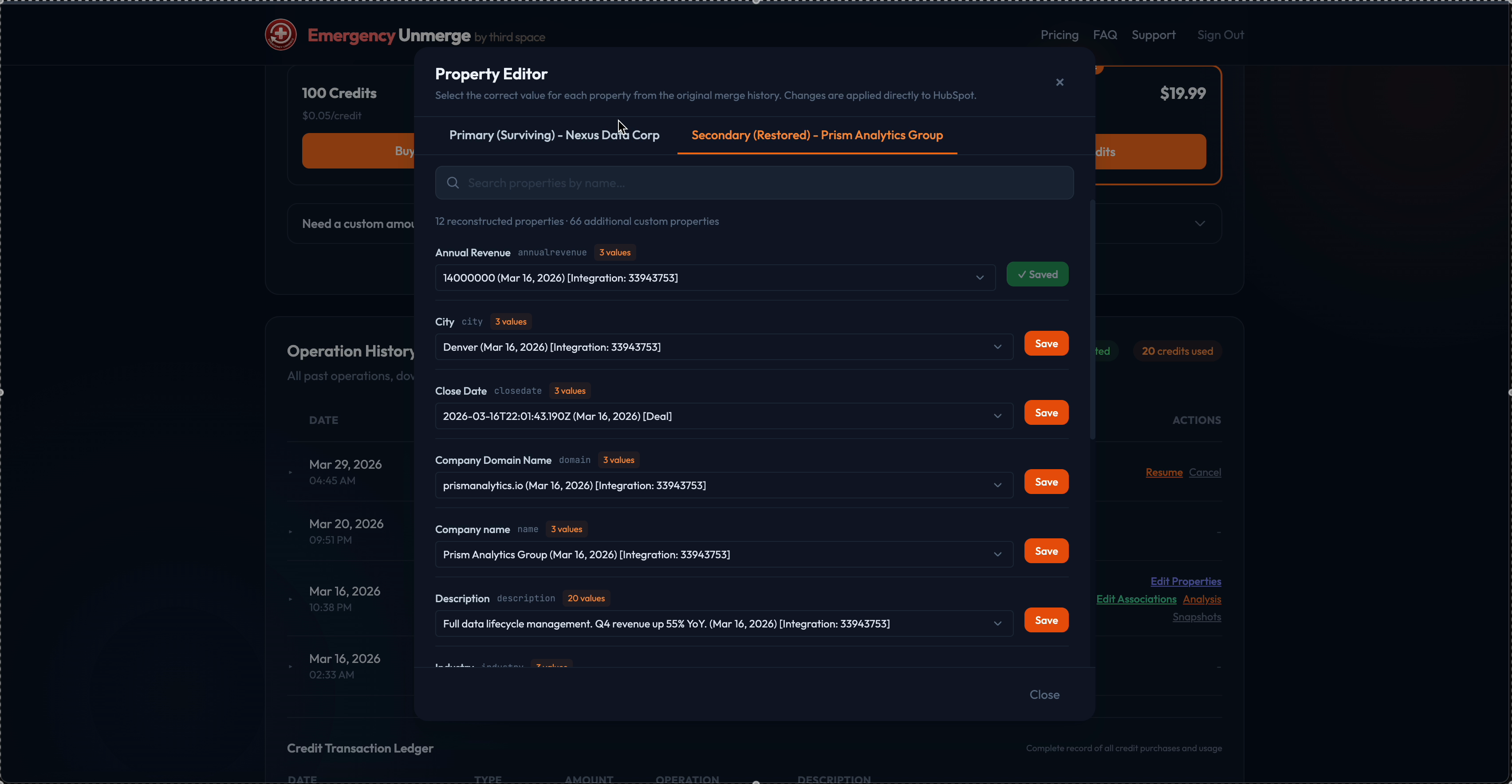
The Property Editor lets you fix any field by choosing from every historical value - including values from before the merge.
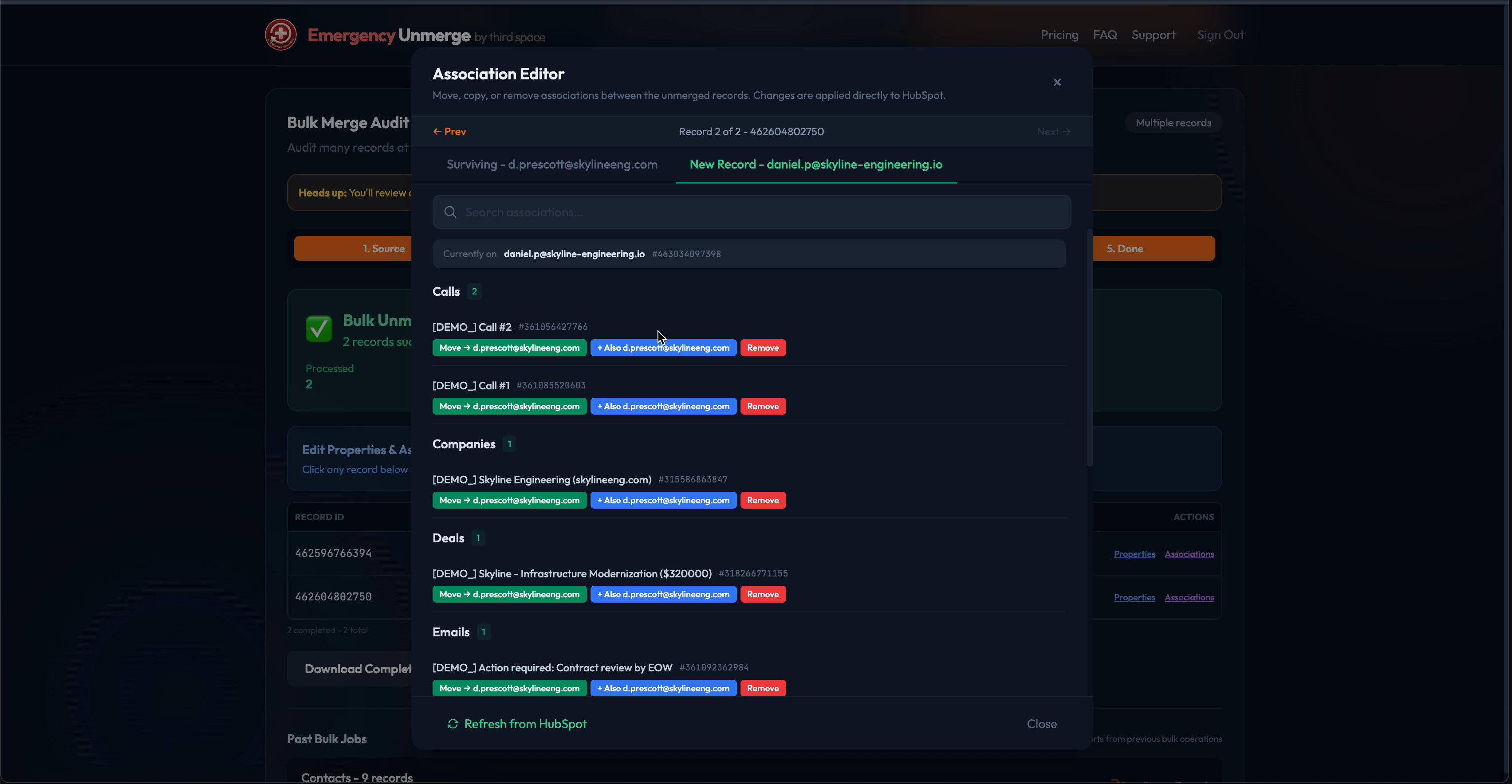
The Association Editor lets you move associations between the separated records, or add and remove associations manually.
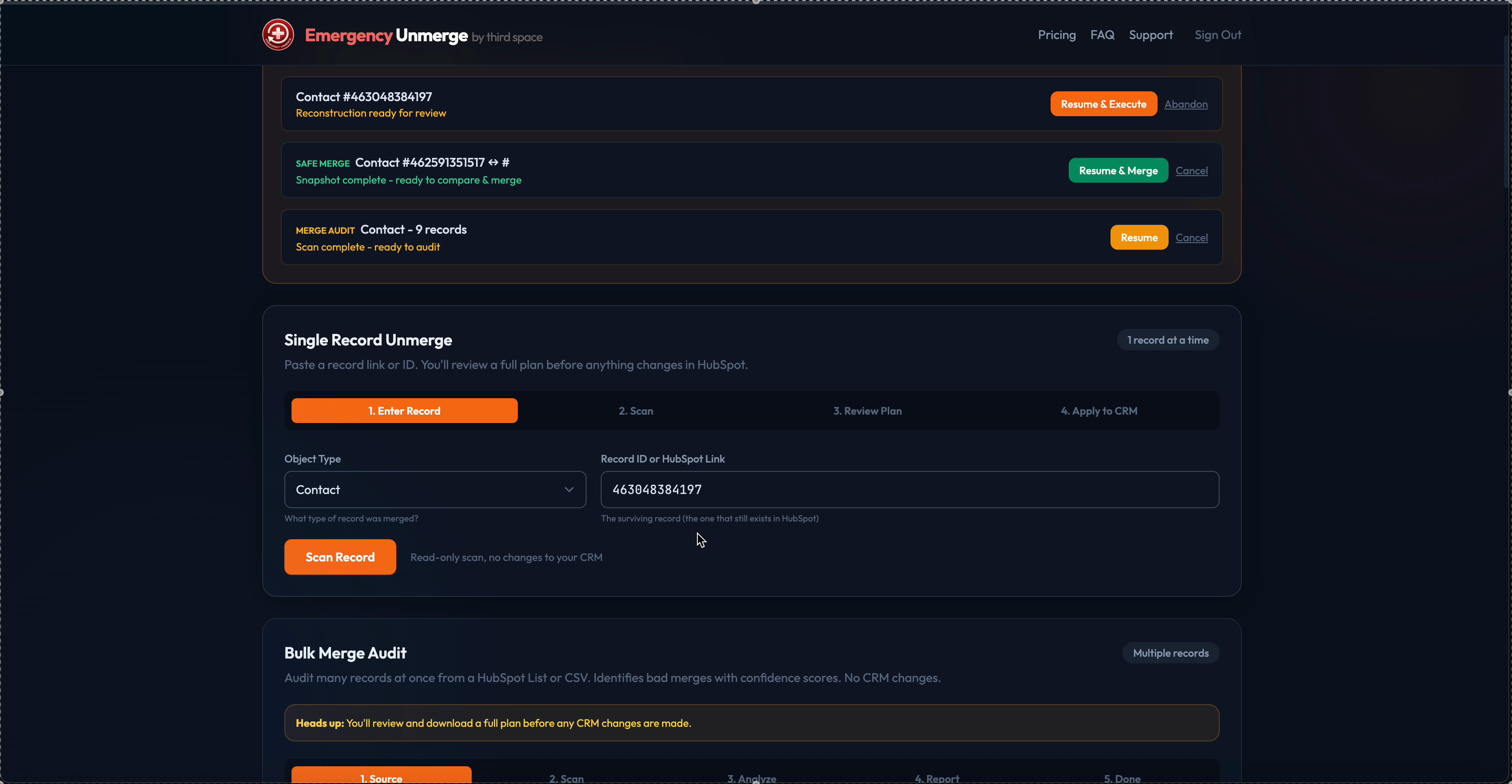
Your account dashboard tracks every operation with links to resume, edit properties, manage associations, download analysis, and view recovery snapshots.
Demo Videos
Watch Emergency Unmerge in action - from install to free bulk scan and power features.
Demo 1: Install & First Scan
Install from the HubSpot Marketplace, open a merged record, and run your first free scan
Demo 2: Full Unmerge Workflow
Complete walkthrough: scan, reconstruction with confidence scores, review, property editor, and execute
Demo 3: Free Bulk Scan & Power Features
Free bulk scan via CSV or HubSpot lists, association editor, and analysis export
Free Bulk Scan
Need to find every bad merge across hundreds or thousands of records? The Free Bulk Scan lets you scan up to 10,000 records at once from your account dashboard. It detects every merged record, classifies the merge type and complexity, and estimates the scope of a full recovery. No CRM changes are made.
Two ways to start a bulk scan:
- CSV Upload: Upload a CSV file containing HubSpot record IDs (one per row). Supports up to 50MB.
- HubSpot List: Select a HubSpot list directly from the dashboard. Emergency Unmerge pulls all record IDs from the list automatically.
What the scan gives you:
- Merge detection: Every merged record is identified across the batch.
- Classification: Each merge is classified by type and complexity.
- Scope estimate: See the full picture of what a recovery would involve before committing to anything.
- CSV export: Download the full report for review or to share with your team.
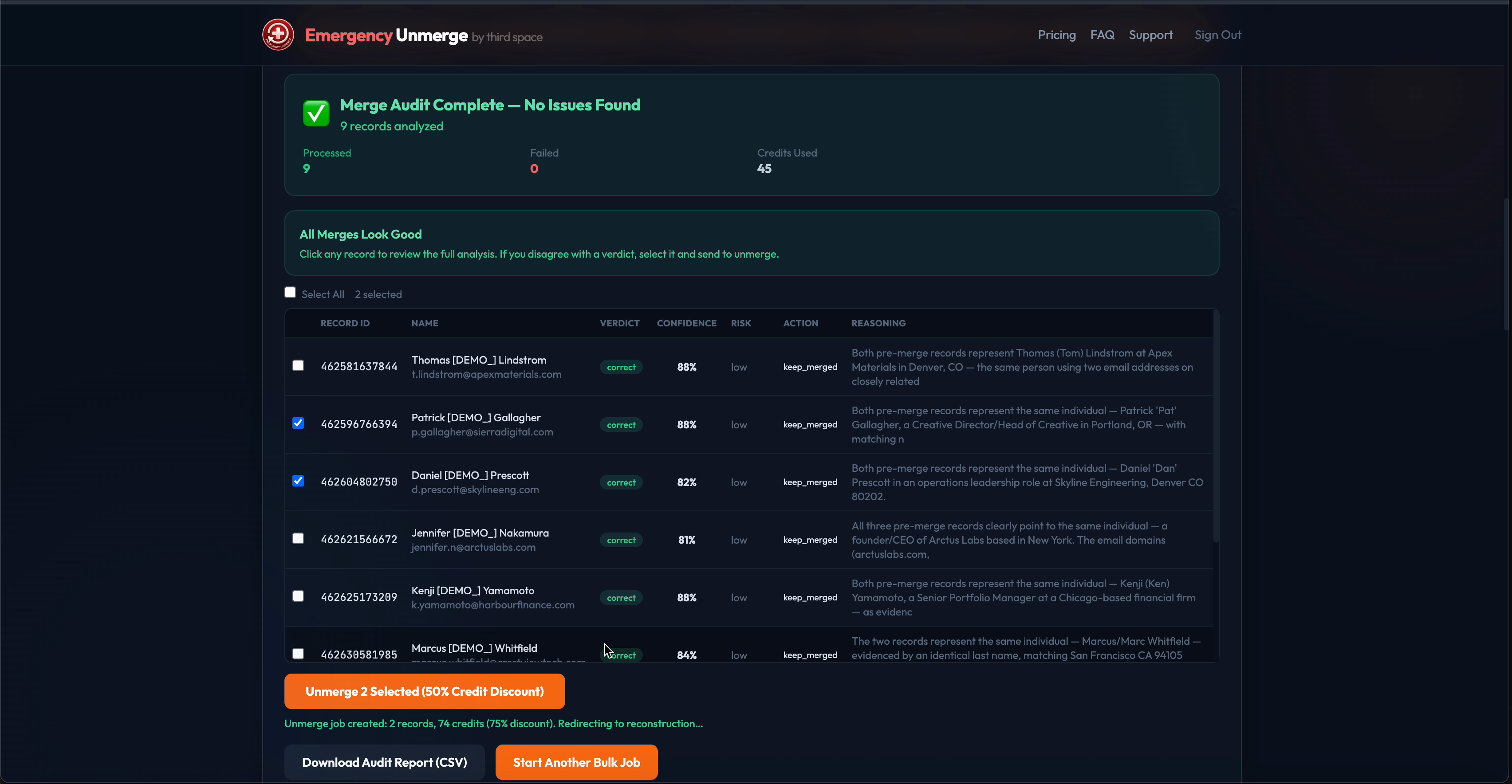
The bulk scan dashboard shows real-time progress for each record, with merge detection status, complexity classification, and a downloadable CSV report.
Bulk Unmerge: Guided Recovery
Once you have your scan results, bulk unmerge is handled as a guided recovery. We run the rebuild with you so the reconstruction order and re-association are done safely. Contact us to start a guided recovery after your scan.
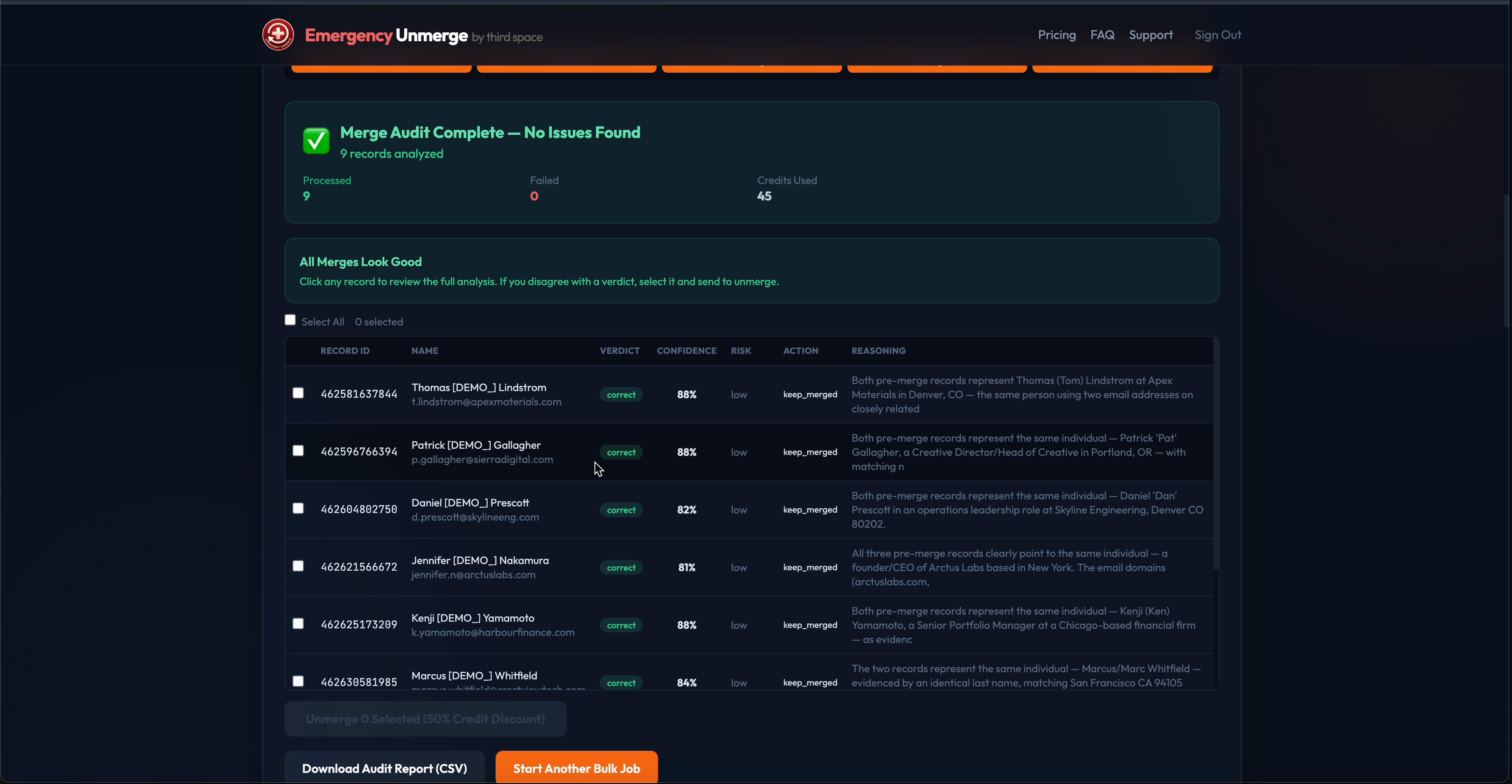
After the free scan completes, you have a full picture of scope. We run the bulk unmerge as a guided recovery so nothing is missed.
Association Editor
After executing an unmerge, you may want to move associations between the separated records. The Association Editor lets you:
- View all associations on both the surviving and restored records (contacts, companies, deals, notes, tasks, calls, emails, meetings)
- Move associations from one record to the other with one click
- Add or remove associations manually
Access it from the completed operation in your account history by clicking "Associations" in the actions column. No credits are charged for association changes.
Analysis Export
Download the full AI analysis as a JSON file for compliance, auditing, or manual verification. The export includes:
- Per-property attribution with confidence scores and reasoning
- Association mappings and activity clustering
- Merge forensics (timestamps, merge event chain)
- Token usage and processing metadata
Available from any completed operation in your account history by clicking "Download Analysis" in the actions column. The export is available after reconstruction completes, even before execution.
Disconnecting & Uninstalling
If you need to disconnect or uninstall Emergency Unmerge:
To disconnect the app:
- In HubSpot, go to Settings → Integrations → Connected Apps
- Find "Emergency Unmerge" in your connected apps list
- Click the app, then click "Uninstall"
What happens to your data:
- Your HubSpot data is not affected: Uninstalling does not modify, delete, or reverse any records or properties in your CRM. Any records that were created or modified by Emergency Unmerge remain as-is.
- Custom properties remain: Properties created by Emergency Unmerge (prefixed with
eu_) stay in your portal. You can delete them manually from Settings → Properties if desired. - Credits are preserved: Your unused credit balance is retained in our system. If you reinstall, your credits will be available again.
- Operation history is preserved: Past operation records, analysis reports, and recovery snapshots remain accessible on your account page using your portal ID.
Need help? If you have questions about disconnecting or need assistance, email us at joshua@thirdspaced.com. We respond within 24 hours.